library(ggplot2)
library(dplyr)
set.seed(20261027)
plot_data <- diamonds |>
  group_by(cut) |>
  slice_sample(n = 100) |>
ungroup()How to make interactive charts you can email
Data Visualisation
R
Making interactive visualisations means you can no longer just send someone a PNG file or a Word document containing your chart by email. Or does it? This blog post will show you how to use R to create interactive charts that are easy to share with other people.
I’m not going to start by getting into a whole discussion about whether or not you should add interactivity to charts, because that could be several blog posts on it’s own. But I’ll at least ask you to remember that just because you can, doesn’t mean you should!
If interactivity is necessary, it creates an additional problem: how do you share the chart with someone else? You can no longer just send them a PNG file or a Word document containing your chart. There are many ways to create interactive charts through tools like Shiny in R or Python, using ObservableJS in Quarto documents, or creating a Javascript app from scratch. However, these each have their own problems in terms of how you share them. An interactive dashboard created with Shiny needs a server to run on (although Shinylive solves this problem, it can be slow to slow), or for someone else to have R installed to run it locally. Quarto documents with embedded ObservableJS charts can run entirely in the browser, but if you email someone an HTML file with embedded JavaScript, it won’t run. Instead of the chart, they’ll get an error that looks a bit like this.

Although this is annoying, it’s actually a useful feature. It means that arbitrary JavaScript can’t just execute in your browser — and therefore on your laptop — simply because you clicked on a file someone sent you. So, is it possible to send an interactive chart to someone by email? Yes, it is. And we’re going to build it in R.
Start with a static chart
Let’s start by grabbing some data we can use for an example. Here we’re going to use the diamonds data that comes with ggplot2. It’s a fairly long data set with around 55,000 rows. Purely to make the process of rendering this blog post a bit faster, I’m going to sample just a subset of the rows to give us just 500 rows to work with. Obviously, don’t do this with your actual data!
Let’s take a look at this fairly generic looking scatter plot, with points coloured by the cut column. Instead of (or as well as) using colour, we could use interaction to highlight the cut categories. That might be in the form of using tooltips, some highlighting on hover, or through a dropdown menu.
ggplot(
  data = plot_data,
  mapping = aes(x = carat, y = price, colour = cut, shape = cut)
) +
  geom_point()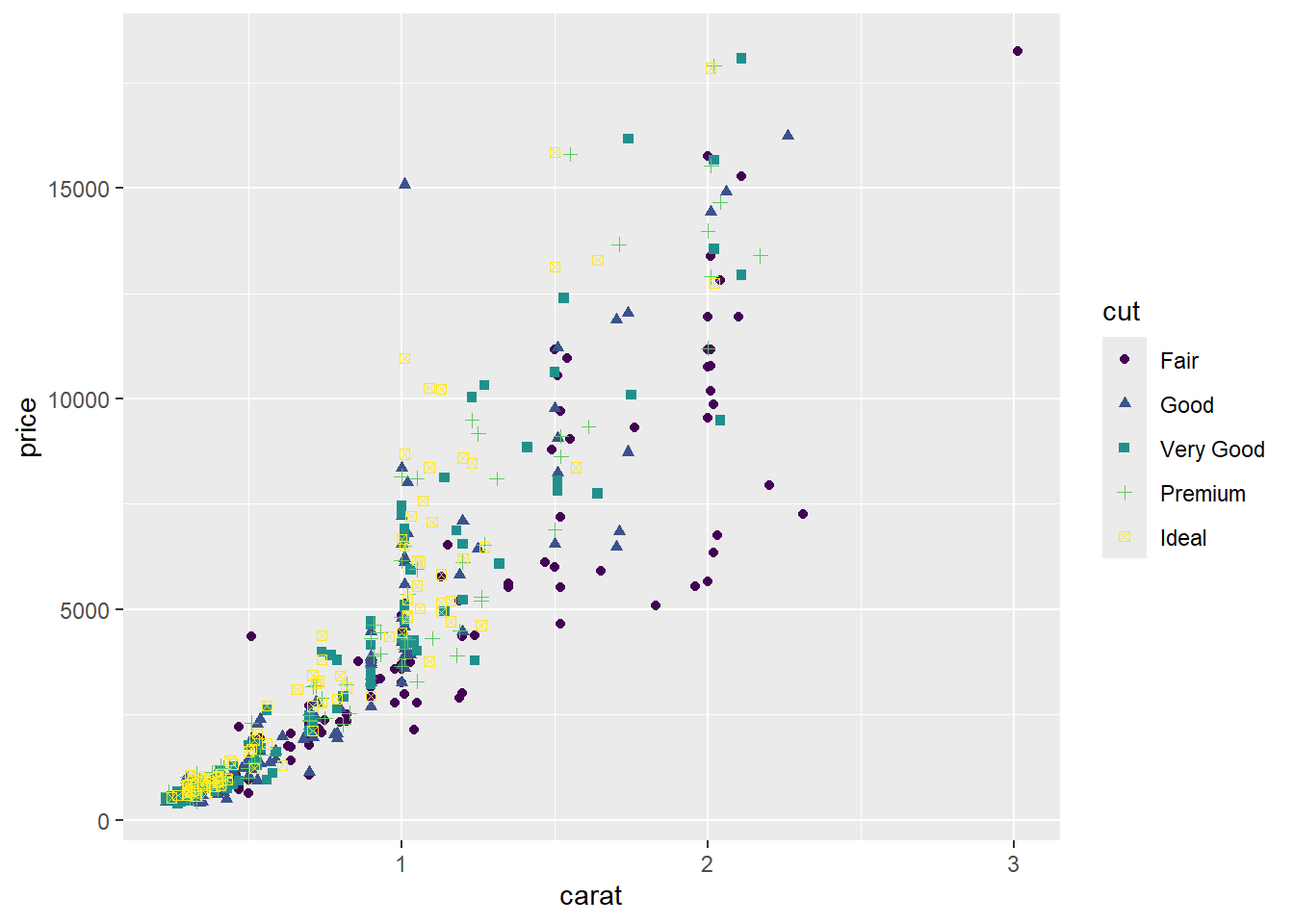
Let’s start with figuring out how we transform our static ggplot2 chart into one that’s interactive. Some of you may start reaching for the ggplotly() function from plotly and I would ask you nicely to put it back down. Charlotte Hadley explains why in her blog post. There’s a much better way to make interactive charts.
Interactive charts with ggiraph
The ggiraph package allows you to create interactive ggplot graphs, and means you can tooltips, hover effects and JavaScript actions to the graphics.
Tip
ggiraph is pronounced giraffe as explained in this blog post from Allison Horst with the hex sticker as a helpful reminder.
There are two main steps to creating an interactive version of your ggplot2 chart:
- Replace your
geom_calls with the_interactive()version fromggiraph. The example below usesgeom_point_interactive()instead ofgeom_point().
library(ggiraph)
g <- ggplot(
  data = plot_data,
  mapping = aes(x = carat, y = price, colour = cut, shape = cut)
) +
geom_point_interactive()- Wrap your chart code inside the
girafe()function that does all the hard work of making it interactive.
girafe(ggobj = g)This is the simplest type of interactive chart you can make, where the only additional feature is a toolbar at the top that allows a user to download the image more easily. You probably want to add a bit more than that.
Tip
If you’re trying to create an interactive chart and there’s no corresponding geom_*_interactive(), there are often ways around this. You can see an example of creating interactive beeswarm charts in this blog post.
Adding tooltips to charts
The next easiest thing to add are some tooltips that appear when a user hovers over a point. We do that by mapping a column in the data to the tooltip aesthetic inside our interactive geom function, just as you would with fill or colour. For more complex tooltips, you can add HTML formatting, or combine columns with text using glue(). I’d advise doing this in the data wrangling step, rather than directly in the aes() call. In the example below, we map the cut column to the tooltip.
g <- ggplot(
  data = plot_data,
  mapping = aes(x = carat, y = price, colour = cut, shape = cut)
) +
  geom_point_interactive(
    mapping = aes(tooltip = cut)
  )
girafe(ggobj = g)
More complex interactive charts
Tooltips are quite a passive interactive feature, and often what we actually want when we talk about interactive charts is a way for a user to make some choice and see that reflected in the chart.
Linking dropdowns to ggiraph
We need a way to link the options in our dropdown menu to the chart. Luckily, ggiraph already has this feature built in. We map the column in our data that matches up to the dropdown values (not names) to the data_id aesthetic.
Note: I’ve removed the colour and shape mapping here as only one category will be displayed at a time on the interactive version we’re creating.
g <- ggplot(
  data = plot_data,
  mapping = aes(x = carat, y = price)
) +
  geom_point_interactive(
    mapping = aes(
      tooltip = cut,
      data_id = cut
    )
  )
To keep our code nice and tidy, we’re going to save our interactive chart as an object instead of rendering it immediately.
g_int <- girafe(ggobj = g)We can then pass this into tagList() from htmltools to keep them together when rendering:
browsable(
  tagList(
    dropdown_html,
    g_int
  )
)
Tip
The browsable() function can be used to make specific objects render as HTML by default when printed at the console, rather than just printing it as HTML. If you’re rendering within a Quarto document only, you don’t need to use browsable() but it’s useful for debugging when running interactively in a console.
Adding dropdown actions
At the moment, our dropdown and chart are only partially linked. If you play with the version above, you’ll notice that nothing happens when the dropdown changes. And that’s because we haven’t written any code to define what happens when the dropdown changes.
To do that, we’re going to add a little bit of Javascript into our browsable() elements. I’ll start by acknowledging that the code below looks pretty horrendous. Javascript might seem quite intimidating, and writing it all in a single character string is certainly not the most user friendly way of doing it. But here we go anyway…
Let’s start by creating a function containing an if statement. The code below says that if the cut value (mapped in data_id) of a specific point is equal to the selected value in the dropdown, then it should be displayed. Otherwise, it should not be displayed.
browsable(
  tagList(
    dropdown_html,
    g_int,
    tags$script(HTML("
      function filterByDropdown(selected) {
        document.querySelectorAll('[data-id]').forEach(el => {
          if (el.getAttribute('data-id') === selected) {
            el.setAttribute('style', 'display:block;');
          } else {
            el.setAttribute('style', 'display:none;');
          }
        });
      }
    "))
  )
)
We then add an additional bit of Javascript that tell the chart to update and run our if statement function every time the dropdown menu is updated to select a different value.
browsable(
  tagList(
    dropdown_html,
    g_int,
    tags$script(HTML("
      function filterByDropdown(selected) {
        document.querySelectorAll('[data-id]').forEach(el => {
          if (el.getAttribute('data-id') === selected) {
            el.setAttribute('style', 'display:block;');
          } else {
            el.setAttribute('style', 'display:none;');
          }
        });
      }

      document.getElementById('dropdown').addEventListener('change', function() {
        filterByDropdown(this.value);
      });

    "))
  )
)
When the chart first renders on the page, the event listener doesn’t recognise this as a change to the dropdown menu so all of the points are rendered by default before the if statement runs for the first time. Our final little bit of Javascript is to force our if statement to run with the initial default value when the page loads.
browsable(
  tagList(
    dropdown_html,
    g_int,
    tags$script(HTML("
      function filterByDropdown(selected) {
        document.querySelectorAll('[data-id]').forEach(el => {
          if (el.getAttribute('data-id') === selected) {
            el.setAttribute('style', 'display:block;');
          } else {
            el.setAttribute('style', 'display:none;');
          }
        });
      }

      document.getElementById('dropdown').addEventListener('change', function() {
        filterByDropdown(this.value);
      });

      document.addEventListener('DOMContentLoaded', function() {
        const initialSelected = document.getElementById('dropdown').value;
        filterByDropdown(initialSelected);
      });
    "))
  )
)
Tip
If you want to add some styling to your dropdown to, for example, set a minimum width or use different colours, you can add some CSS that either targets all select elements or specifically looks for your #dropdown menu.
And now we have a fully functioning interactive chart where the data displayed changes based on what a user selected from a dropdown. If you’ve been creating interactive charts with tools like Shiny for a while, this might not seem like a big deal. However, the beauty of this approach is that you don’t have to figure out deployment. The easiest way to share this with another person, is to stick it all into a Quarto document and email it to them. To make sure all of the necessary bits and pieces are included in the HTML output, set embed-resources: true.
---
format:
  html:
    embed-resources: true
---
The output from this will be a .html file. You can then send this file as an attachment to an email. When your recipient receives the email, they can download the attachment and double-click on it to open it in a web browser. They’ll then be able to interact with it, the same way you did.
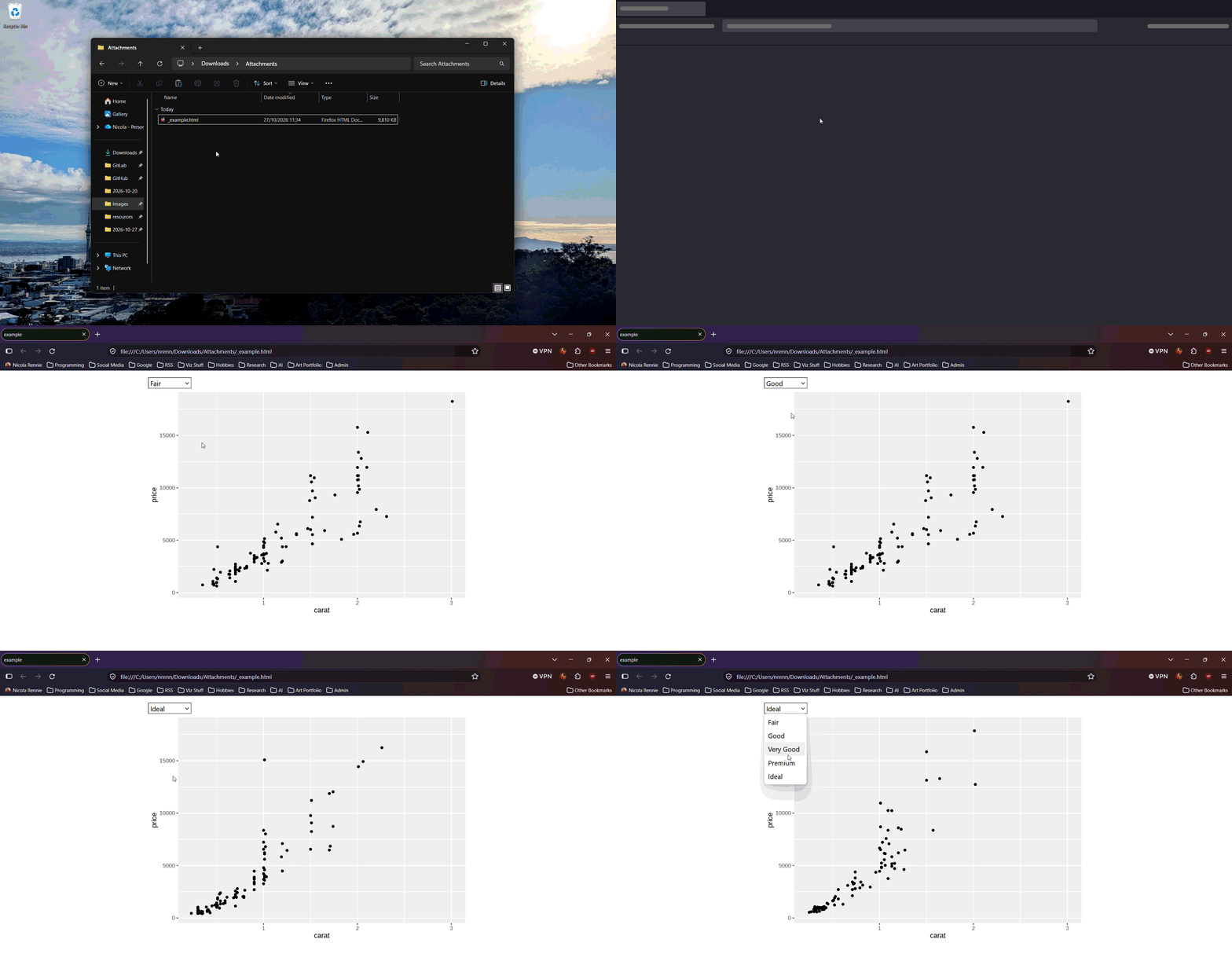
Tip
This works because our initial interactive chart actually contains all of the data, and we’re just using CSS to style which elements are hidden and shown based on the dropdown. A dropdown change doesn’t mean pulling in any new data, or rebuilding the whole chart with Javascript. Sometimes this means rendering the Quarto document can be slow, but the user experience is usually very responsive.
You can find a link to a complete Quarto document here. I’d also recommend checking out the ggiraph book for more examples of the types of interactivity you can add.
Reuse
Citation
BibTeX citation:
@online{rennie2026,
  author = {Rennie, Nicola},
  title = {How to Make Interactive Charts You Can Email},
  date = {2026-10-27},
  url = {https://nrennie.rbind.io/blog/interactive-charts-ggiraph/},
  langid = {en}
}
For attribution, please cite this work as:
Rennie, Nicola. 2026. “How to Make Interactive Charts You Can
Email.” October 27. https://nrennie.rbind.io/blog/interactive-charts-ggiraph/.