Collaborating on Quarto documents
Quarto is one of my favourite tools for authoring, whether those documents contain code or not. However, it’s not perfect. One of the main reasons I don’t use Quarto for every project, is because collaborating with other people, particularly non-technical collaborators who don’t want or need to edit any R or Python code, is hard. Like, really hard. Quarto documents often don’t work very nicely with some of the more common document-sharing options like OneDrive or Google Drive. Quarto documents contain code, and they make lots of little interim files when rendering, and you often can’t even view a Quarto document in OneDrive unless you download it and open it in a different programme. So how do you work together on Quarto documents with people who would really just prefer you to send them a Word document with track changes enabled?
The first thing to know is that you are very much not alone in this problem. In fact the developers of Quarto recently announced they are working on Quarto 2. The Quarto 2 news I’m most excited about is that Quarto 2 will include a built-in collaborative editor. However, Quarto 2 doesn’t exist for public consumption just yet so many users still need an interim solution. But unless you need to collaborate on Quarto documents in the near future, perhaps the best solution is just to wait a while. If that’s the case, I won’t be offended if you stop reading now!
If you’re still reading, then here are a few suggestions for collaborative editing.
Quarto project structure
Before getting into different solutions, I want to mention a couple tips for setting up Quarto to make collaboration between technical and non-technical authors easier.
Separate out the code
Although Quarto is an incredible tool for combining code and narrative text, what you don’t want to end up with is one impossibly long document that contains every piece of code and all of the text in one place. It can easily become very hard to manage. Instead, make use of Quarto’s includes feature to load smaller Quarto documents into the main document, and the option to load external code files in.
Your project set up might look something like this (if you are using R as your language of choice):
project/
├── R/
│   ├── part1-load-data.R
│   ├── part1-plot1.R
│   ├── part1-plot2.R
│   ├── part2-analytics.R
│   └── part3-plot1.R
├── text/
│   ├── part1.qmd
│   ├── part2.qmd
│   └── part3.qmd
├── index.qmd
In this structure, the .qmd files in text/ contain only plain Markdown content without code. This means that non-technical authors can edit a plain text file, and preview it in any Markdown editor without having to worry about accidentally editing R code or installing Quarto. The R/ directory contains all of your analysis script, perhaps multiple for each section, which can be read into .qmd files elsewhere. Alternatively, these could be .qmd files that contain R code. The main index.qmd file is where you pull of the other parts together.
Freeze computations
Use Quarto’s freeze feature so that rendering doesn’t require your collaborators to have R, Python, or any of your dependencies installed, and so a re-render doesn’t accidentally trigger a long computation just because someone fixed a typo.
Use pipelines
For projects that combine text with code, especially long-running code, tools like targets or makefiles can separate “run the analysis” from “render the document” entirely, so that collaborators editing text are never anywhere near the computational parts of the project.
None of these tips are a replacement for a proper collaborative editing tool, but it limits the number and scale of things that can go wrong when working with other people on Quarto documents.
Solutions that use or integrate Git
Many of the collaborative editing tools I’m about to suggest rely on Git in some way. Either by using Git directly, or using it in the background. This doesn’t necessarily mean that every member of your team needs to be comfortable with Git but it’s probably helpful if at least one person is. Or at least is willing to be the nominated Git person!
Check out Git and GitHub for R users for an introduction to version control, collaborating on code from RStudio, and reviewing code on GitHub.
GitHub GUI
If your collaborators only need to make small edits, GitHub’s own web editor is often enough. Anyone with access to the repo can open a .qmd file, click the pencil icon, make changes, and open a pull request — all from the browser, with no local set up at all. It won’t render the document for them, but for text-only edits, that’s often not necessary.
I’d suggest using a pull request based workflow, particularly when asking for reviews from coauthors, for a few reasons:
- Coauthors can see what has changed since they last looked at the document;
- They can add comments and suggestions; and
- You can set up previews through pull requests (meaning if someone makes a suggestion and opens a pull request with the change, they would be able to see a preview of what the new document would like when rendered).
Alternatives to GitHub, such as GitLab or BitBucket, can be used in a similar way.
GitHub Desktop
For collaborators who need to work locally but don’t want to touch the command line, GitHub Desktop gives them a GUI for cloning, committing, branching, and opening pull requests. It’s a reasonable middle ground: there’s still a proper Git history and you still get to review changes as pull requests, but collaborators probably don’t need to know much more than what a few buttons do.
Overleaf
If your collaborators already know Overleaf, its GitHub sync feature lets you keep a Quarto project mirrored to an Overleaf project. One caveat that comes up often: to edit a .qmd file through the Overleaf UI, you may need to delete and recreate it from within Overleaf first before changes will sync properly. It’s a bit clunky, but it means collaborators never have to leave an interface they already know.
This blog post from Gergő Bocsárdi covers the basics and some advice if you’re considering this approach.
Quartorium
Quartorium takes a different approach: it gives collaborators a Word-like WYSIWYG editor for a .qmd file, hiding the code chunks entirely so they only see and edit the rendered prose, plots, and tables. Every change a collaborator makes is committed automatically to a separate Git branch, so you get a full audit trail and can review anything before merging anything back in. This approach does require the main author to be reasonably comfortable with Node.js as well as Git, and because it runs quarto render directly on your machine, you need to make sure you’re only using it with trusted collaborators (and not use random code from the internet).
HackMD
Rather than just splitting a Quarto project into code and text, you could go one step further and split it into code, plain Markdown, and Quarto Markdown. Most of the narrative content likely lives in the plain Markdown space. Luckily, that’s the easiest bit to edit collaboratively. HackMD is a real-time collaborative Markdown editor — think Google Docs, but for Markdown, with multiple cursors and live updates. It has GitHub sync built in, so you can push a Quarto document’s Markdown content to HackMD for editing and pull the changes back. It won’t understand and preview Quarto-specific syntax like cross-references or callouts, but you probably don’t have that much narrative content in there.
Solutions that don’t use Git
Git can be sometimes feels a little bit scary if you haven’t used it much, and so a Git-based solution might not seem ideal if no one in your team is particularly comfortable with it. Luckily, there are a few non-Git solutions for collaborative Quarto documents. However, I’d still recommend one person being responsible for the overall document.
Trackdown
The trackdown R package uploads your .qmd file as plain text to Google Drive, where it can be edited as a Google Doc. The narrative sections are worked on in Google Docs, where commenting and track changes features can be used. One of the nice features of trackdown is the option to hide code when you upload to Google Docs, making sure that co-authors don’t accidentally edit any code. Although it is an R package, it could also work for Python-based workflows since the idea is to separate out the code from the narrative text.
VS Code ‘Collab Comments’ Extension
This new VS Code extension from Michael Lydeamore for collaborative commenting with author tracking, timestamps, and threaded discussions on source documents works with Quarto documents.
ArchieML
ArchieML is a markup format specifically for non-coders writing structured text in Google Docs (or MS Word documents). Rather than converting a whole document, it lets you mark up specific pieces of structured data within otherwise free-form prose, which a parser then extracts.
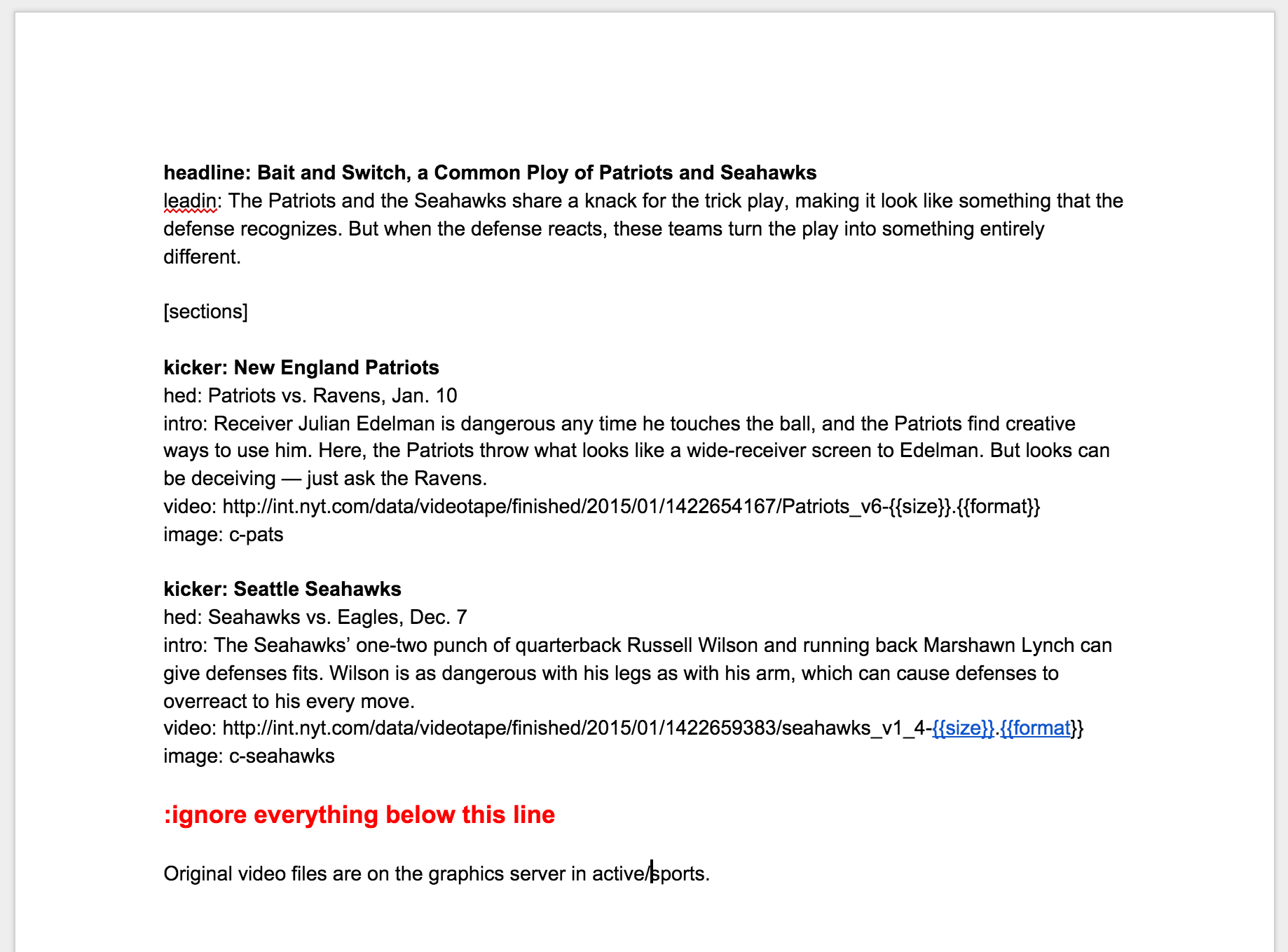
There are both R and Python wrappers around ArchieML. Your Quarto document might look quite different from a traditional Quarto document, as it will pull the narrative text from the Google Doc rather than be written directly in a .qmd file. It will work best for documents that are reasonably well-structured, rather than very free-flowing. It has nice features such as the ability to convert link text in a Google Doc into correctly formatted links, collaborative editing in Google Docs or MS Word in OneDrive, and the ability to draft text that doesn’t appear in the final output.
This list of solutions for collaborating on Quarto is non-exhaustive. The solutions I’ve mentioned won’t work for every project. It depends on how technical coauthors are, what IT security policies you have on installing software, whether there are policies as to where you can save files, what exactly you are collaborating on and how code-heavy it is, and how asynchronously you are working as a team.
Reuse
Citation
@online{rennie2026,
  author = {Rennie, Nicola},
  title = {Collaborating on {Quarto} Documents},
  date = {2026-06-30},
  url = {https://nrennie.rbind.io/blog/collaborating-quarto/},
  langid = {en}
}