Can generative AI create good data visualisations? This blog post compares the performance of ChatGPT, Claude, Copilot, and Gemini when presented with a generic request to visualise a dataset.
Author
Nicola Rennie
Published
October 8, 2025
Generative AI tools have been around for a little while now, and they’re mostly advertised as being able to help you with writing, coding, and reasoning. Different AI tools are designed for different types of tasks, so I wanted to see how some of the most commonly used tools compare to each other when used for data visualisation. I’m going to compare four different generative AI tools - ChatGPT, Claude, Copilot, and Gemini. Using the free tier of each tool, I’m going to give them two different datasets with a prompt to create a chart.
Prompts
I didn’t want to use well-known datasets like penguins or titanic since there are so many examples of charts of those datasets already in existence. I wanted to see how well they would do with new(ish) data. If you’ve been following these blog posts for a little while, it’s probably not a surprise that I turned to TidyTuesday to find some data!
Prompt 1: weather forecast data
The first dataset used gives information on weather forecast accuracy from the USA National Weather Service. It contains data on the observed and predicted (at 12, 24, 36, and 48 hours before) temperature and precipitation levels for different cities in the USA, between January 2021 and June 2022.
I pre-processed the data to focus on a single city (Syracuse), single year (2021), and one type of forecast (12 hours before). This was mainly to make the data small enough for uploading to different generative AI websites. The data look like this:
Create a chart of the relationship between forecast_temp (forecasted temperature) and observed_temp (observed temperature) in the attached CSV file. The high_or_low column explains whether the forecast is for the high temperature or the low temperature for that day. The generated image should follow data visualisation best practices.
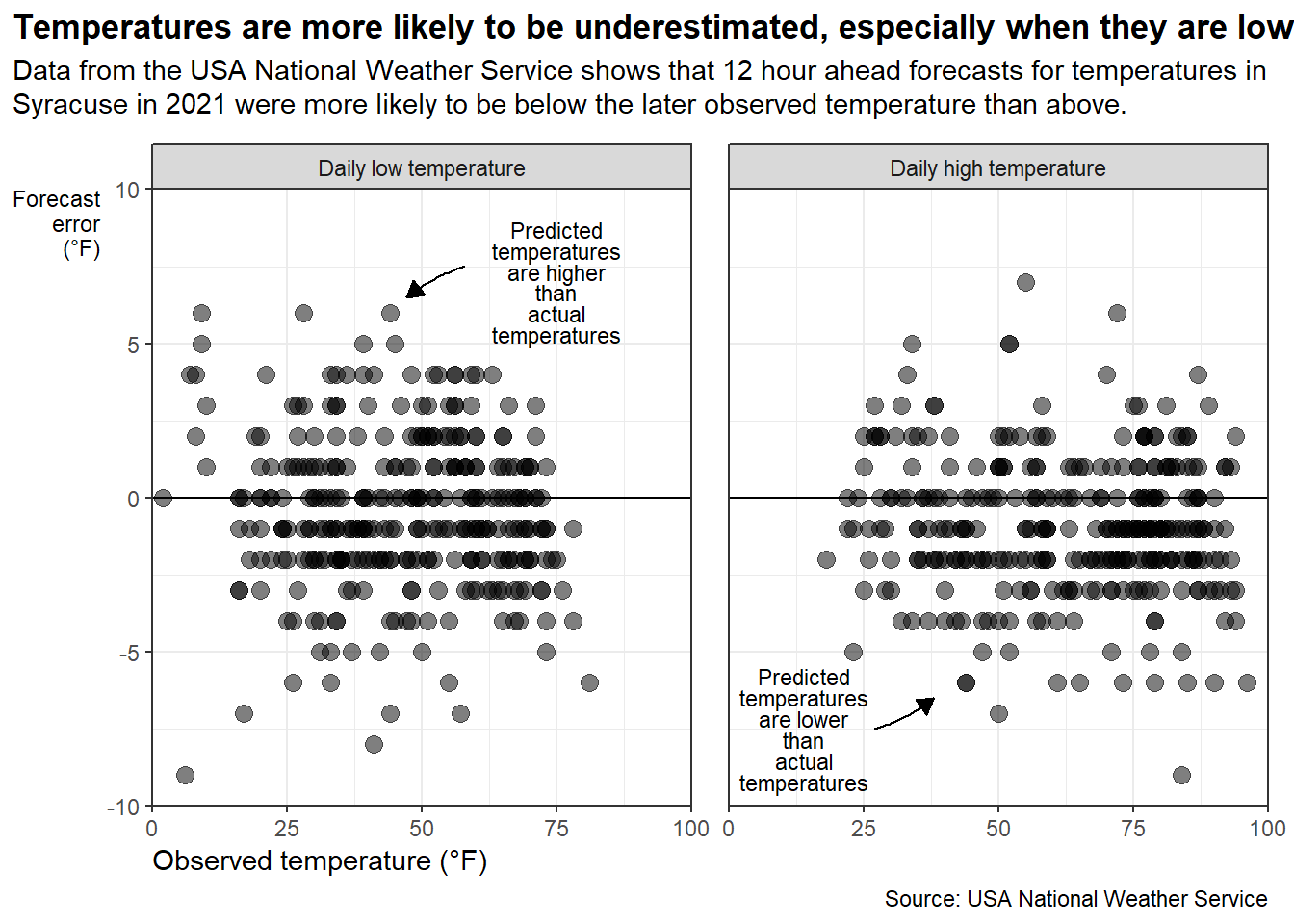
If I was to visualise this data, I might create something like this as a first draft:
Code
library(ggplot2)library(ggtext)library(ggh4x)# Prep annotationsannotation1 <-annotate("text",label = stringr::str_wrap("Predicted temperatures are higher than actual temperatures", 10 ),size =3, x =75, y =7, lineheight =0.8)annotation2 <-annotate("text",label = stringr::str_wrap("Predicted temperatures are lower than actual temperatures", 10 ),size =3, x =14, y =-7.5, lineheight =0.8)arrow1 <-annotate("curve",x =58, xend =47,y =7.5, yend =6.5,arrow =arrow(length =unit(0.1, "inches"), type ="closed"),curvature =0.1)arrow2 <-annotate("curve",x =27, xend =38,y =-7.5, yend =-6.5,arrow =arrow(length =unit(0.1, "inches"), type ="closed"),curvature =0.1)# Plotweather |> dplyr::mutate(high_or_low =factor(high_or_low,levels =c("low", "high"),labels =c("Daily low temperature", "Daily high temperature") )) |>ggplot(mapping =aes(x = observed_temp,y = forecast_temp - observed_temp ) ) +geom_hline(yintercept =0) +geom_point(size =3, alpha =0.5) +at_panel(annotation1, PANEL ==1) +at_panel(annotation2, PANEL ==2) +at_panel(arrow1, PANEL ==1) +at_panel(arrow2, PANEL ==2) +scale_x_continuous(limits =c(0, 100)) +scale_y_continuous(limits =c(-10, 10)) +labs(title ="Temperatures are more likely to be underestimated, especially when they are low.",subtitle ="Data from the USA National Weather Service shows that 12 hour ahead forecasts for temperatures in Syracuse in 2021 were more likely to be below the later observed temperature than above.",x ="Observed temperature (°F)",y = stringr::str_wrap("Forecast error (°F)", 10),caption ="Source: USA National Weather Service" ) +facet_wrap(~high_or_low, nrow =1) +coord_cartesian(expand =FALSE, clip ="off") +theme_bw() +theme(plot.margin =margin(5, 10, 5, 5),plot.title.position ="plot",plot.title =element_text(face ="bold"),plot.subtitle =element_textbox_simple(margin =margin(b =10)),panel.spacing =unit(1, "lines"),axis.title.x.bottom =element_text(hjust =0),axis.title.y.left =element_text(angle =0, hjust =1, size =rel(0.8)) )
The key features of this visualisation are:
Narrative title that states the key takeaway.
Does not rely on colour to differentiate categories to improve accessibility.
Uses transparency to make it easy to see where there are multiple observations in the same place.
Symmetric y-axis, and zero line to make it easier to see if the data is is above or below zero.
Uses annotations to make the values shown easier to understand.
Prompt 2: CEO departures data
The second dataset gives information on reasons for CEO departures between 2000 and 2018, and is from a publication by Gentry et al. Again, to limit the file size, I filtered the data to only include data points between 2000 and 2009. Even with the more limited time frame, the data is still reasonably large at 3.5Mb.
The prompt given to all generative AI tools was:
TipPrompt 2
Create a chart of the relationship between fyear (fiscal year) and ceo_dismissal (binary variable for whether the dismissal was for involuntary, non-health related reasons) in the attached CSV file. The generated image should follow data visualisation best practices.
Evaluation
In terms of deciding whether the generated plot is good, I want to look at:
Accuracy: Does it accurately represent the data? Are the points or lines actually the values in the data?
Best practices: Is the chart type appropriate for the data? Are the axes, colours, shapes etc. well-chosen?
Aesthetics: Does it actually look nice? How much work would I have to do, to make this a publication quality chart?
Now on to the interesting part - the results!
Results: weather forecast data
As a reminder, the prompt used was:
TipPrompt 1
Create a chart of the relationship between forecast_temp (forecasted temperature) and observed_temp (observed temperature) in the attached CSV file. The high_or_low column explains whether the forecast is for the high temperature or the low temperature for that day. The generated image should follow data visualisation best practices.
ChatGPT
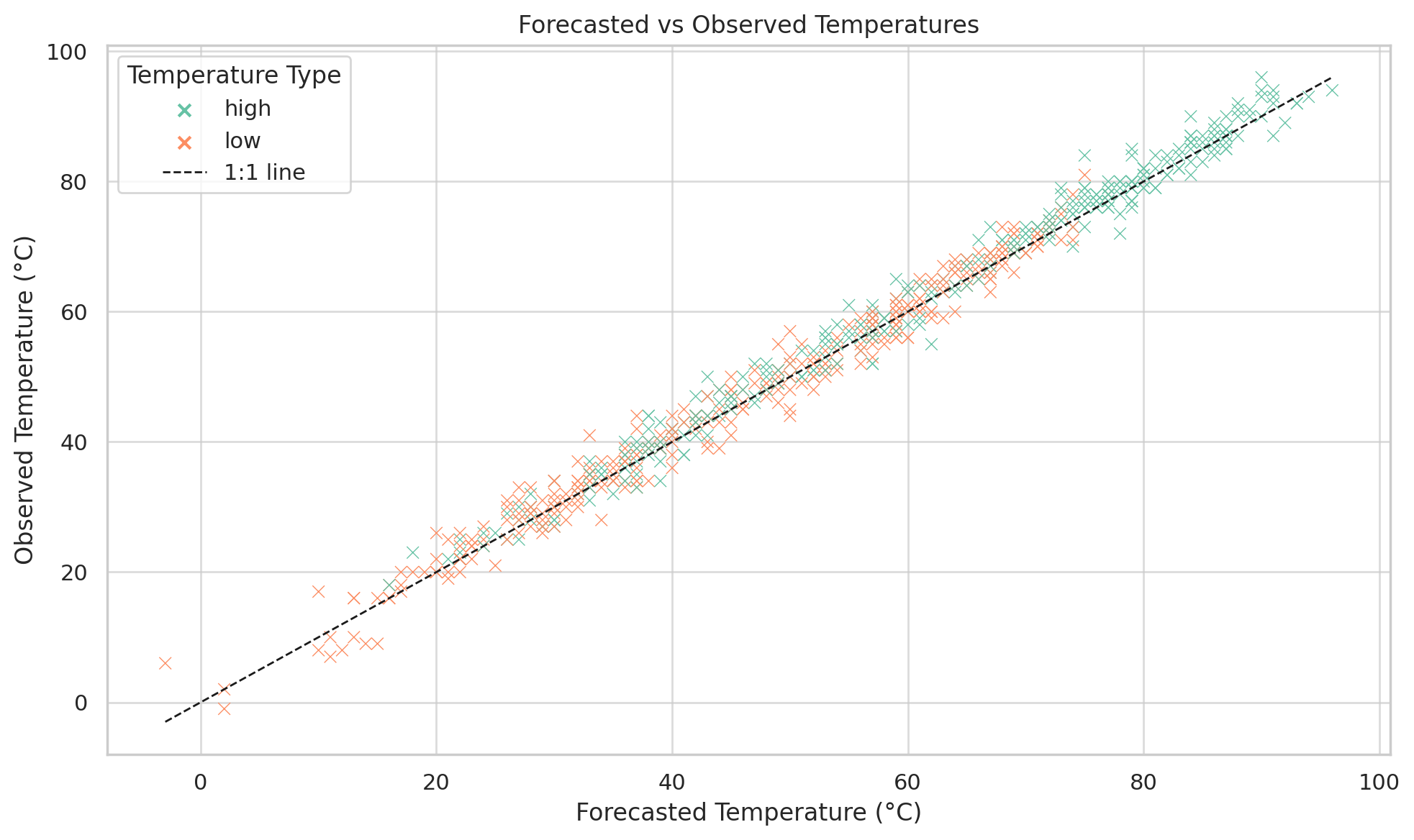
ChatGPT produced the static chart above, with the following accompanying text:
Here’s the chart showing the relationship between forecasted and observed temperatures, separated by high and low temperature forecasts. The dashed line represents perfect prediction accuracy (1:1).
Things that are reasonably good:
The use of crosses instead of opaque dots makes it easier to see where there are clusters of points overlapping.
The addition of a comparison line.
Things that are not so good:
It guessed at the units as being degrees Celsius rather than Fahrenheit - 100°C isn’t exactly a reasonable temperature forecast!
It relies on colour to differentiate high and low forecasts, and the red and green colour choice is not good for accessibility.
This is a static chart (with no accompanying code) which makes it harder to edit.
Claude
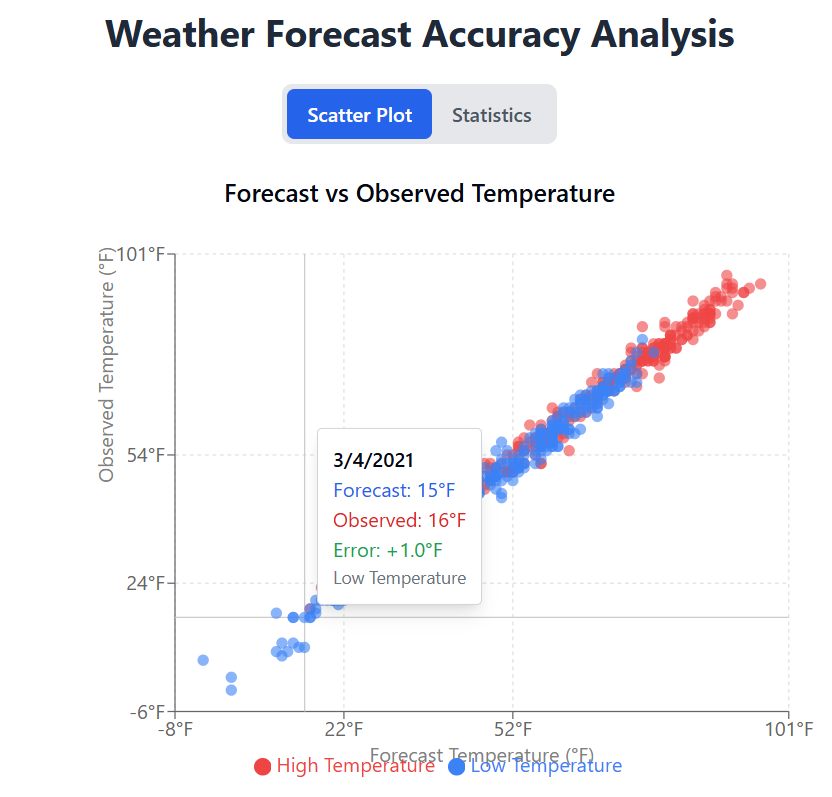
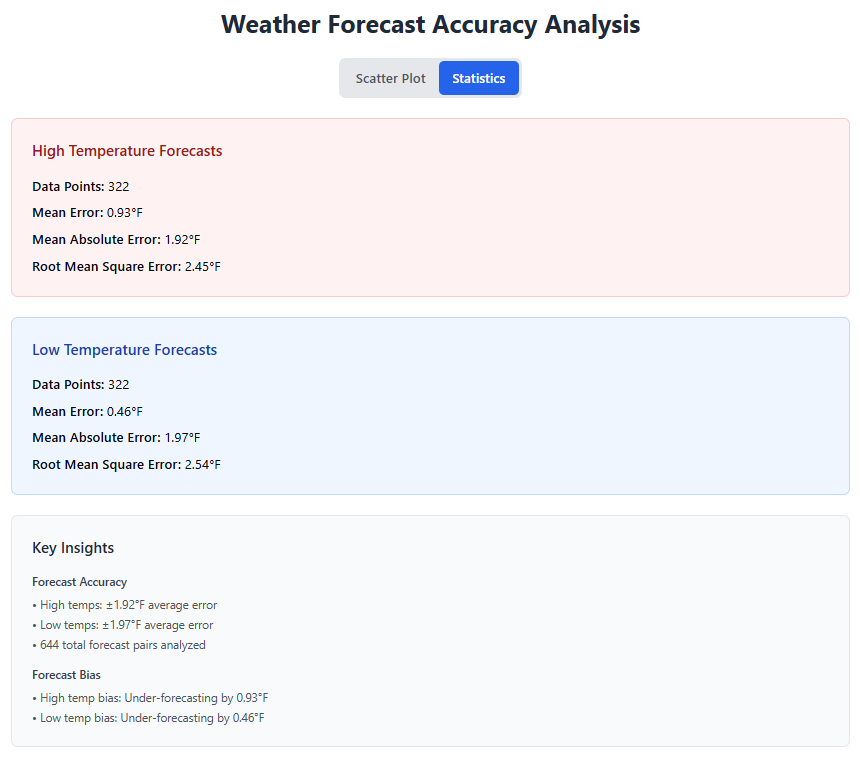
Claude went way over the top! It built an entire, quite complex app using React. The accompanying text was extensive, and so is omitted here. A screenshot of the home page of the app is shown above. It also created a second page of the app specifically analysing forecast accuracy:
Things that are reasonably good:
Correctly guessed the units as Fahrenheit.
Design looks clean, and the colour palette is okay - matching blue for cold, and red for hot.
It calculates summary statistics, and provides key insights (not quite as good as a narrative title, but still a pretty good summary).
Things that are not so good:
There’s no guarantee that the person creating this visualisation actually knows React, so creating an app for them using React can easily result in something that they don’t understand. It feels like a disproportionately complex result, given the prompt.
The choice of break points on the x- and y- axes are weird.
Copilot
Copilot produced the following text:
Here’s a chart that visualizes the relationship between forecasted and observed temperatures, with a clear distinction between high and low forecasts:
📊 Chart Highlights Scatter plot format shows how closely forecasted temperatures align with observed ones.
Color-coded by high_or_low to differentiate high and low temperature forecasts.
Consistent styling with gridlines, labeled axes, and a legend for clarity.
Edge-colored markers improve visibility and accessibility. If you’d like to explore trends (e.g. whether high forecasts tend to be more accurate than low ones), I can help with that too. Want to dig deeper?
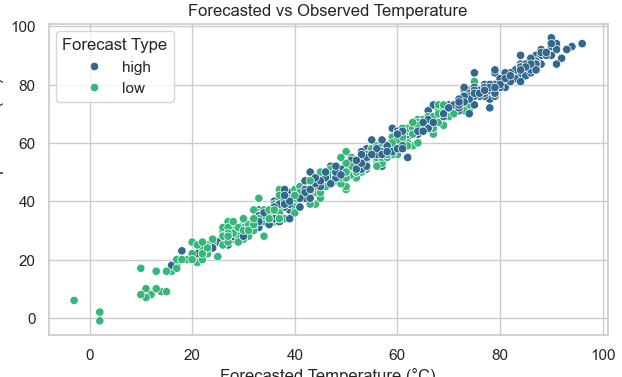
Based on the first sentence, you might assume that it generated a chart - it did not! No image was actually generated, even when re-prompted. Instead, it generated some Python code to make a chart which was revealed upon clicking see my thinking. The chart created by the Python code (with some tweaking) can be seen below:
See Python code
import pandas as pdimport seaborn as snsimport matplotlib.pyplot as pltimport os# Set seaborn style for better aestheticssns.set(style="whitegrid")# Load the CSV filetry: df = pd.read_csv("temperature_data.csv")exceptExceptionas e:raiseRuntimeError(f"Failed to load CSV file: {e}")# Check required columnsrequired_columns = {'forecast_temp', 'observed_temp', 'high_or_low'}ifnot required_columns.issubset(df.columns):raiseValueError(f"Missing required columns in the dataset. Found columns: {df.columns.tolist()}")# Create output directory if it doesn't existoutput_dir ="/mnt/data"os.makedirs(output_dir, exist_ok=True)# Create scatter plotplt.figure(figsize=(10, 6))sns.scatterplot(data=df, x='forecast_temp', y='observed_temp', hue='high_or_low', palette='viridis')plt.title('Forecasted vs Observed Temperature')plt.xlabel('Forecasted Temperature (°C)')plt.ylabel('Observed Temperature (°C)')plt.legend(title='Forecast Type')plt.tight_layout()# Save the plotplot_path = os.path.join(output_dir, "forecast_vs_observed_temp.png")plt.savefig(plot_path)plt.close()print(f"Plot saved to {plot_path}")
Things that are reasonably good:
Scatter plot is a reasonable choice for comparing the two columns.
The code has error checking - although the built in Python errors actually give an identical error at an earlier point so it’s a lot of redundant code.
Tries to highlight the design choices made, which are reasonable even if they aren’t well executed.
Things that are not so good:
It didn’t actually generate a chart! The Python code wasn’t quite correct, and it resulted in a blank plot saved in a very obscure location. The labels also end up chopped off. This isn’t a blog post about using generative AI to write code, so I’ll be forgiving about that here.
Again, assumes temperatures are in Celsius.
Colour choices are not great, and it’s quite hard to see the points when they’re layered on top of each other.
Gemini
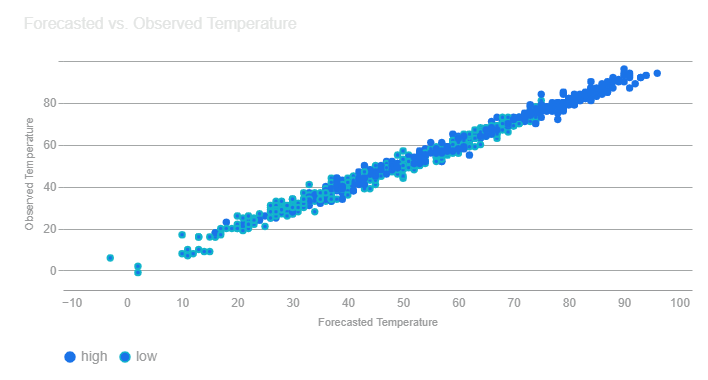
Gemini produced a small interactive chart (screenshot above), with the following accompanying text:
The scatter plot above illustrates the relationship between forecasted and observed temperatures. The different colors represent whether the temperature is a high or low forecast for the day. This visualization helps to identify how closely forecasted temperatures align with actual observed temperatures and whether there are any patterns in the accuracy of high versus low temperature forecasts.
Things that are reasonably good:
The chart was interactive, and I could customise the view, see the data as a table, and download the chart as an image.
Things that are not so good:
The colour choices are very poor. The points for both categories are the same colour, and they are only differentiated by the dot outline being a slightly different shade of blue.
Non-symmetric axis ranges make it harder to compare, especially without a diagonal comparison line.
The text colours look fine in dark mode, but the chart downloads with a transparent background. Against the light background of this blog post, the text is very hard to read.
Results: CEO departures data
Onto the second experiment! As a reminder, the prompt used was:
TipPrompt 2
Create a chart of the relationship between fyear (fiscal year) and ceo_dismissal (binary variable for whether the dismissal was for involuntary, non-health related reasons) in the attached CSV file. The generated image should follow data visualisation best practices.
ChatGPT
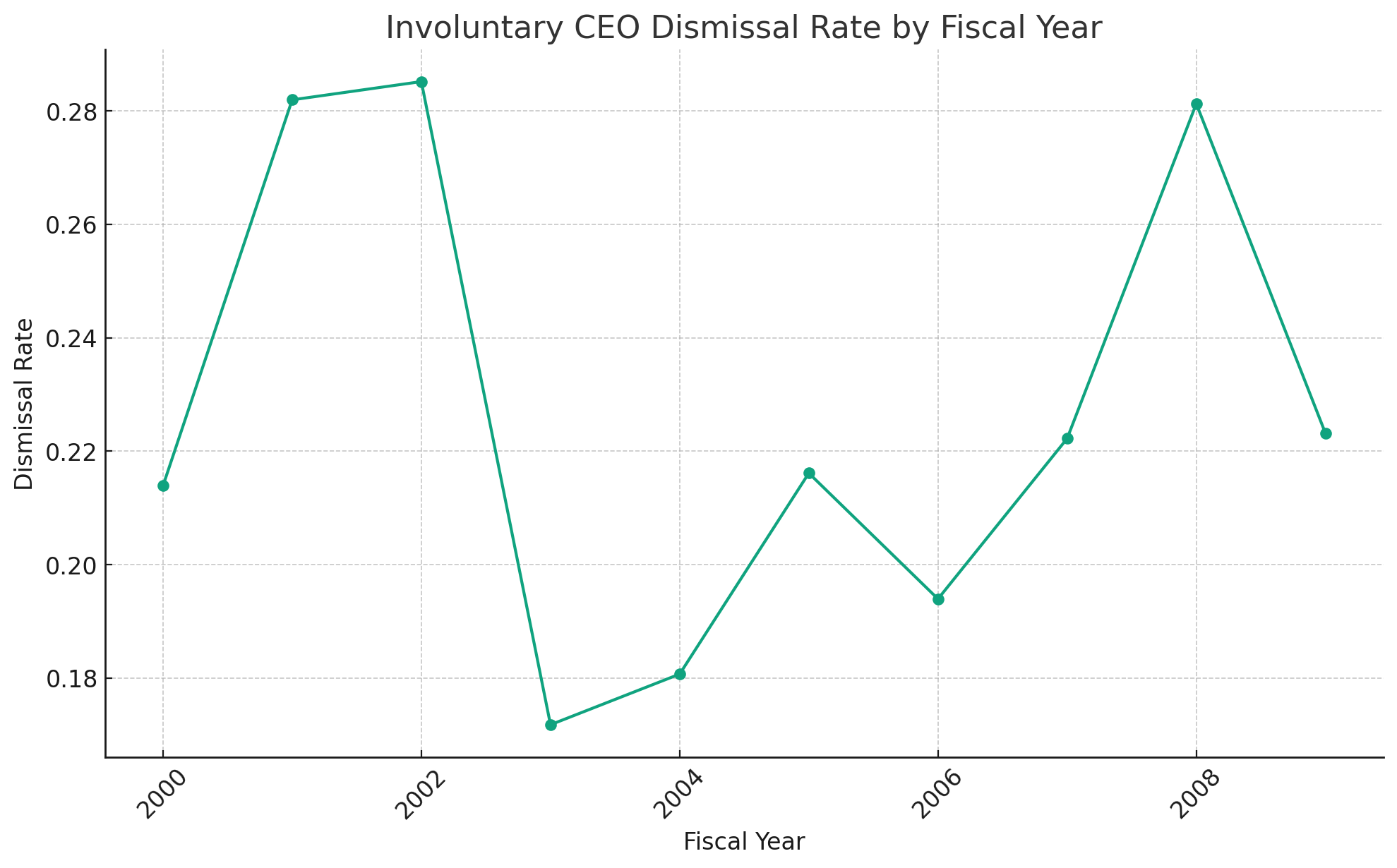
ChatGPT produced the static chart above, with the following accompanying text:
Here’s the chart showing the rate of involuntary CEO dismissals (non-health related) by fiscal year. It follows best practices by using clear labels, appropriate scaling, and a focus on the trend rather than raw counts. Let me know if you want it broken down further (e.g. by industry or company size).
Similar to the first experiment, ChatGPT produced a fairly basic chart that’s fine but doesn’t quite follow best practices - such as rotated x-axis labels. It did plot the rate rather than the absolute count given, which is probably more appropriate.
Claude
Claude was unable to produce a visualisation for the second prompt, giving the error message that the text is 2413% larger than allowed. Essentially, the data is just too big to upload.
Copilot
Copilot was also unable to produce a visualisation for the second prompt because the data was too large to upload.
Gemini
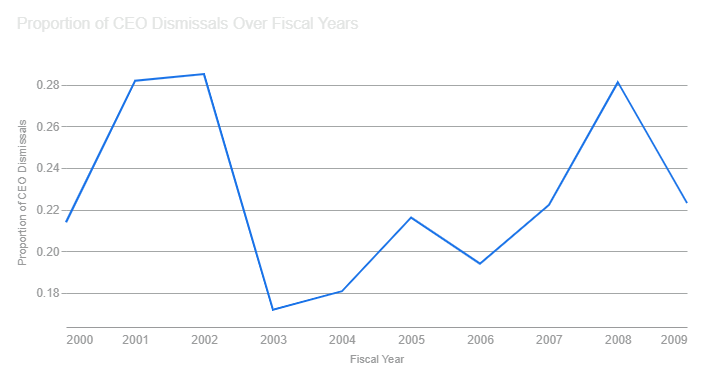
Gemini again produced a small interactive chart (screenshot above), with the following accompanying text:
Here’s a chart displaying the proportion of CEO dismissals over fiscal years, derived from the data you provided. This visualization illustrates how the rate of involuntary, non-health-related CEO dismissals has changed over time. Let me know if you would like to analyze other aspects of the data!
The styling and issues are very similar to those from Gemini in the first experiment. It also plotted the rate instead of the absolute count.
Final thoughts
TipTLDR
A very quick summary of all four AI tools:
Gemini: Good overall with comparable performance across the two datasets and prompts. The charts aren’t perfect, but they allow interactive data exploration and don’t over-complicate it.
ChatGPT: Reasonable overall with comparable performance across the two datasets and prompts. The charts look more amateurish and poorer quality compared to Gemini.
Claude: Good for small datasets but does way too much, unless you prompt it not to. Unable to work with larger data.
Copilot: Poor overall. Produced code to create a chart, but not the chart itself. Unable to work with larger data.
If I had to pick one of the four right now, I’d probably go for Gemini.
This is obviously not a full-scale research study, so there’s a limit to what conclusions I can draw here. The prompts were deliberately over-simplified, to see how different tools reacted to a generic data visualisation request. More specific prompts, or additional prompts, would give better results.
The most notable thing (across all tools) was that none of them asked questions about what relationships were important to show, who they audience was, what the main message was, preference for chart type, or indeed anything else. As a human, asking questions is the first part of the data visualisation design process. One of the things I found a little bit surprising, was that all tools tended to perform tasks I didn’t ask them to do, but completely ignored other columns in the data that I didn’t mention. Generative AI could be quite useful for prototyping and quickly drafting some initial ideas - though I’m probably going to stick to pen and paper!
Generative AI tools are naturally going to be better at writing code than they are at mimicking a human following a design-process. And so most tools produced code, even though I didn’t explicitly ask for it. That could, of course, also be influenced by their memory of what I’ve previously used them for. Most of the tools (at least on a free tier) struggled with the size of the data, which was far from big data. The code-generation approach does mean that you could feed a subset of your data in, and re-run the resulting code on your full dataset. I’d generally recommend a code-first approach to data visualisation since it makes it possible to reproduce your chart again later.
All tools, across both prompts, chose the obvious chart type - which isn’t necessarily a bad thing! Without a specific prompt to be creative, defaulting to a chart type that’s commonly used for that type of data seems sensible enough. However, they weren’t very good at applying best practices for data visualisation, especially in terms of colour choices. You still need to think about best practices yourself in order to get decent results. Remember that generative AI tools are not just trained on good data visualisations!
Further reading
Neil Richards published a similar blog post to this one, asking Can GPT help create data visualisations? He goes through the process of using ChatGPT to scrape data, then build and iterate on a data visualisation.